
Deploying Static WordPress to GitHub Pages (Part 2/2)
If you arrived here without reading the previous article, I recommend starting with Converting WordPress to Static HTML first.
Now that we’ve generated our WordPress site as static HTML and verified it works correctly, it’s time to deploy it to production.
There are many hosting providers available—OVH, GoDaddy, AWS, Azure, and countless others. However, for this guide, I’ll show you how to host your static site on GitHub Pages.
Why GitHub Pages?
GitHub is one of the most popular platforms for developers worldwide. But did you know that GitHub offers free hosting for Jekyll or static HTML sites directly from a Git repository?
GitHub Pages is ideal for static sites because:
- Free hosting with generous bandwidth
- Built-in CI/CD via GitHub Actions
- Custom domains with automatic HTTPS
- Version control built in
Preparing Your Repository
Ready to deploy? Let’s create a new GitHub repository.
I won’t walk through creating a GitHub repo—it’s straightforward, and you’ve likely done it before.
Once your repository exists, push your static WordPress files:
git clone <your-repo-url>
cd <your-repo>
# Copy your static files into this directory
git add --all
git commit -m "Deploy static WordPress site"
git push origin master
After pushing your files, navigate to your repository settings on GitHub to enable GitHub Pages.
Configuring GitHub Pages
In your repository settings, find the Pages section:
Source Branch
Choose which branch to deploy from. If you followed the steps above, select master (or main for newer repositories).
Custom Domain
Enter your custom domain in the Custom Domain field. This could be:
- An apex domain:
example.com - A subdomain:
blog.example.com
Enforce HTTPS
Enable Enforce HTTPS to secure your site. GitHub partnered with Let’s Encrypt to provide free SSL certificates for custom domains. You no longer need CloudFlare or other workarounds—HTTPS works out of the box. Read more about this feature.
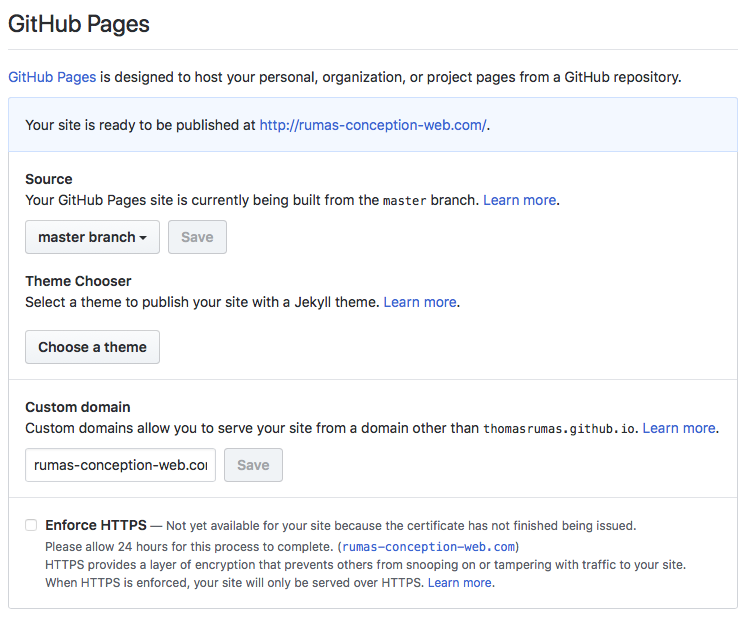
The image above shows an example configuration.
Configuring DNS for Your Domain
To use a custom domain, you need to configure DNS records with your domain registrar.
Using an Apex Domain
If you want to use an apex domain (e.g., example.com without a subdomain):
- Log in to your domain registrar’s DNS management panel
- Add or modify A records to point to these GitHub IPs:
185.199.108.153
185.199.109.153
185.199.110.153
185.199.111.153- Wait for DNS propagation (typically 24-48 hours)
Using a Subdomain
For subdomains (e.g., blog.example.com):
- Create a CNAME record pointing to
<username>.github.io - Configure the custom domain in GitHub Pages settings
Verifying Your Setup
Once DNS propagates:
- Visit your custom domain
- Verify the site loads correctly
- Check that HTTPS is working (look for the lock icon in your browser)
Real-World Example
I used this exact approach to host a WordPress site on GitHub Pages successfully.
Next Steps
In a future article, I’ll show you how to:
- Create a Docker image of your WordPress installation with its database
- Enable quick updates from any machine running Docker
- Automate the static site generation and deployment process
This workflow makes it easy to update content in WordPress locally and deploy changes rapidly.
Key Takeaways
Static WordPress hosting on GitHub Pages offers:
- Free hosting with excellent performance
- Automatic HTTPS via Let’s Encrypt
- Git-based deployment workflow
- Custom domains at no extra cost
The main trade-off is that you need to regenerate and redeploy the site whenever content changes. However, for sites that don’t update frequently, this approach provides excellent security, performance, and cost savings.